
What is Microsoft Intune? The Definitive Guide for IT Professionals
If you are navigating the complexities of modern IT infrastructure, you have likely realized that the old way of managing devices simply does not work anymore. The days of everyone sitting behind a corporate firewall, using identical desktop computers securely wired to a local server, are long gone. Today, employees work from anywhere, using a mix of corporate-issued laptops, personal smartphones, and tablets.
This massive shift to remote and hybrid work has left system administrators and IT directors asking a critical question: What is Microsoft Intune? In this comprehensive, fully technical blog, we are going to dive deep into exactly what Microsoft Intune is, how it works under the hood, and why it has become the gold standard for Unified Endpoint Management (UEM) in a cloud-first world.
The Core Definition
At its foundational level, Microsoft Intune is a 100% cloud-based endpoint management solution. It manages user access and simplifies application and device management across your entire organization.
Think of Intune as your organization's digital command center. It allows your IT department to control how your organization’s devices (including mobile phones, tablets, and laptops) are used, while also allowing you to configure specific policies to control individual applications.
Intune is a core component of Microsoft’s Enterprise Mobility + Security (EMS) suite. It integrates seamlessly with Microsoft Entra ID (formerly Azure Active Directory) to manage user identities and access, and Microsoft Defender for Endpoint to handle threat intelligence. Ultimately, Intune is the engine enforcing your organization's Zero Trust security model at the device level.
The Two Main Pillars: MDM and MA
To truly grasp how Microsoft Intune functions, you need to understand its two primary capabilities. Intune allows you to tackle endpoint management from two different angles, depending on who actually owns the hardware.
1. Mobile Device Management (MDM)
MDM is the traditional approach to managing corporate-owned devices. When you purchase a fleet of laptops or iPhones for your employees, your organization needs full administrative control over that hardware.
When a device is fully "enrolled" in Intune via MDM, IT administrators can:
- Configure Device Settings: Push Wi-Fi profiles, VPN configurations, and trusted certificates directly to the device so the user does not have to manually set anything up.
- Enforce Security Baselines: Mandate complex alphanumeric passwords, require hardware-level disk encryption (like BitLocker for Windows or FileVault for macOS), and disable hardware features like the camera or removable USB storage.
- Deploy Applications: Push necessary corporate software natively to the machine, whether it is the Microsoft 365 app suite, custom line-of-business (LOB) apps (.msi or .intunewin files), or third-party software.
- Perform Remote Actions: If an employee leaves a corporate laptop in a taxi, IT can issue a remote "Wipe" command from the Intune portal. The next time the device pings the internet, it is restored to factory settings, permanently destroying the corporate data.
2. Mobile Application Management (MAM)
The rise of BYOD (Bring Your Own Device) changed the game entirely. Employees want the convenience of checking their work email on their personal smartphones, but they absolutely do not want the IT department to have the ability to track their GPS location, view personal texts, or accidentally wipe their personal photos.
This is where MAM becomes Intune's superpower. MAM allows IT to manage and secure only the corporate applications and the data within them, leaving the personal side of the device completely untouched and unmonitored.
With MAM and Intune's App Protection Policies (APP), you can:
- Containerize Data: Create a secure, encrypted, invisible wall around corporate apps like Outlook, Teams, and OneDrive.
- Prevent Data Leakage (DLP): Stop an employee from copying a sensitive client list from a corporate email and pasting it into their personal WhatsApp or native Apple Notes app. You can also block "Save As" to personal cloud storage.
- Require App-Level Authentication: Force a user to enter a separate PIN or use biometrics (FaceID/Fingerprint) just to open the Outlook app, even if the phone itself is already unlocked.
- Execute Selective Wipes: When a contractor's project ends, IT can issue a command that wipes only the corporate data from the managed apps, leaving the user's personal data perfectly intact.
How Does Microsoft Intune Work? (The Architecture)
Because Intune is a cloud-native Software-as-a-Service (SaaS) solution hosted globally on Microsoft Azure, it requires zero on premises infrastructure. You do not need to build, maintain, or patch local servers to use it
Here is how the architecture comes together in a modern enterprise:
Integration with Microsoft Entra ID and Conditional Access
Intune does not operate in a vacuum; it acts as the "health inspector" for your network, working hand-in-hand with Microsoft Entra ID (the identity provider).
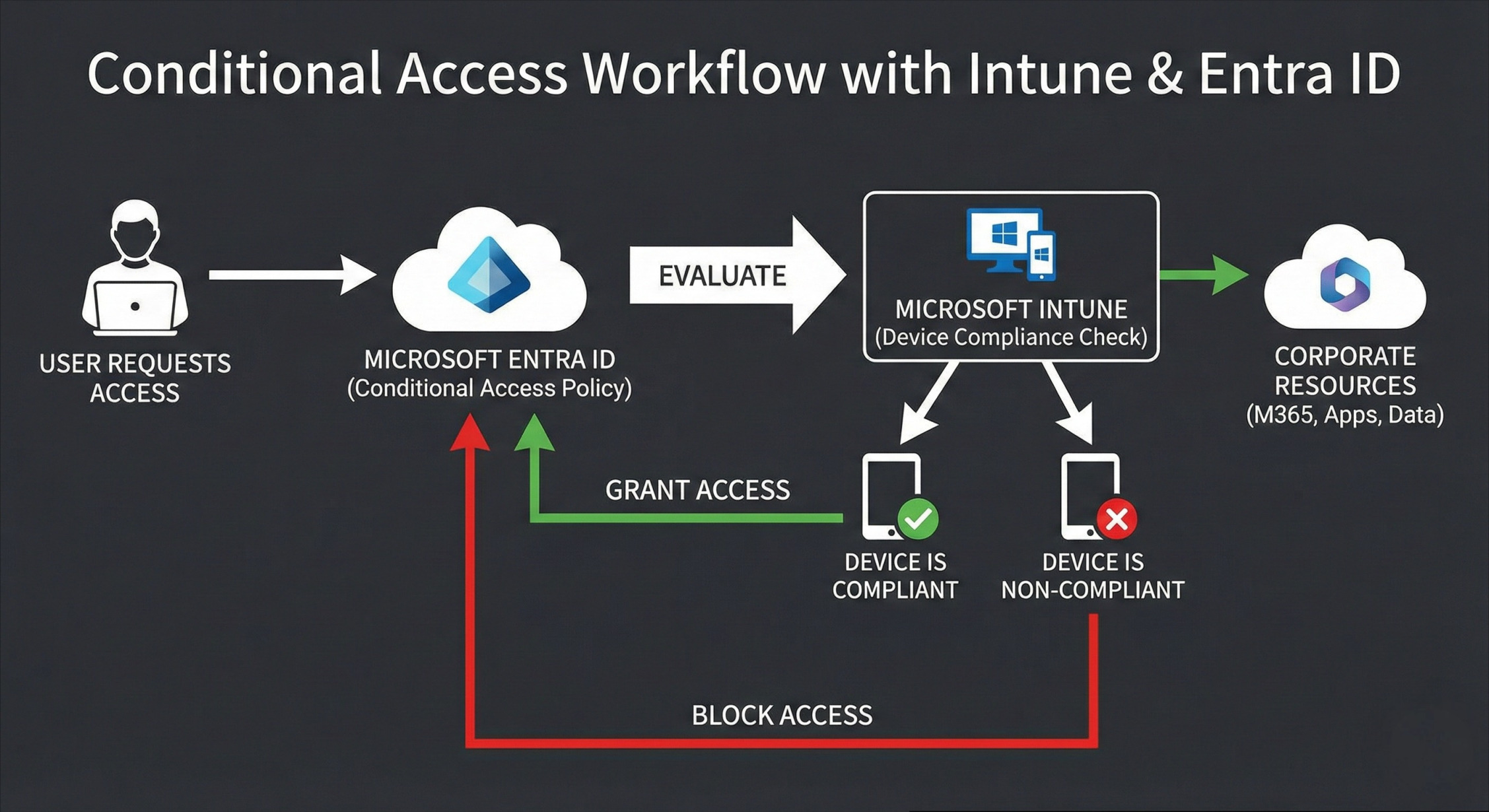
- Compliance Policies: IT defines health rules in Intune (e.g., "Devices must have the latest OS update," "Antivirus must be active," "No jailbroken/rooted devices allowed").
- Continuous Health Check: Intune constantly evaluates enrolled devices against these policies.
- Signal to Entra ID: If a device passes, Intune tells Entra ID, "This device is Compliant."
- Conditional Access: Entra ID acts as the bouncer at the door. You can create a Conditional Access policy that states: "Only allow access to corporate SharePoint data if the user successfully passes Multi-Factor Authentication (MFA) AND their device is marked as Compliant by Intune.
If a user accidentally downloads malware, Microsoft Defender detects it and alerts Intune. Intune instantly marks the device as "Non-Compliant," and Entra ID automatically severs the user's access to all corporate data until the threat is removed. It is automated, ruthless, and highly effective.
Supported Platforms (Not Just for Windows!)
A common misconception is that because it has "Microsoft" in the name, Intune is only good for managing Windows PCs. In reality, modern IT environments are heavily mixed, and Intune is aggressively cross-platform.
Windows 10 / 11 | Full MDM, Autopilot provisioning, Win32 App Deployment, BitLocker enforcement, and granular Windows Update for Business (WUfB) rings |
Apple macOS | Full support for Mac management, deployment of .pkg and .dmg files, FileVault encryption enforcement, shell scripts, and integration with Apple Business Manager (ABM). |
Apple iOS / iPadOS | Robust management for iPhones and iPads, supporting both BYOD (MAM-WE) and fully supervised, locked-down corporate devices. |
Android | Full native support for the Android Enterprise framework: Personally-Owned Work Profiles (BYOD), Fully Managed, Dedicated (Kiosks), and Corporate Owned with Work Profile. |
Linux & ChromeOS | Expanding footprint offering compliance checks for custom Linux distros (like Ubuntu) and API integration with Google to manage ChromeOS devices. |
Advanced Features Every IT Admin Should Leverage
Beyond basic device wiping and password policies, Microsoft Intune offers advanced features that drastically reduce IT overhead and improve the end-user experience.
1. Windows Autopilot: The End of Manual Imaging
Historically, when a new employee started, IT had to unbox a new laptop, plug in a USB drive with a custom Windows image, wait an hour, manually install apps, repackage it, and hand it over.
Windows Autopilot completely eliminates this manual labor.
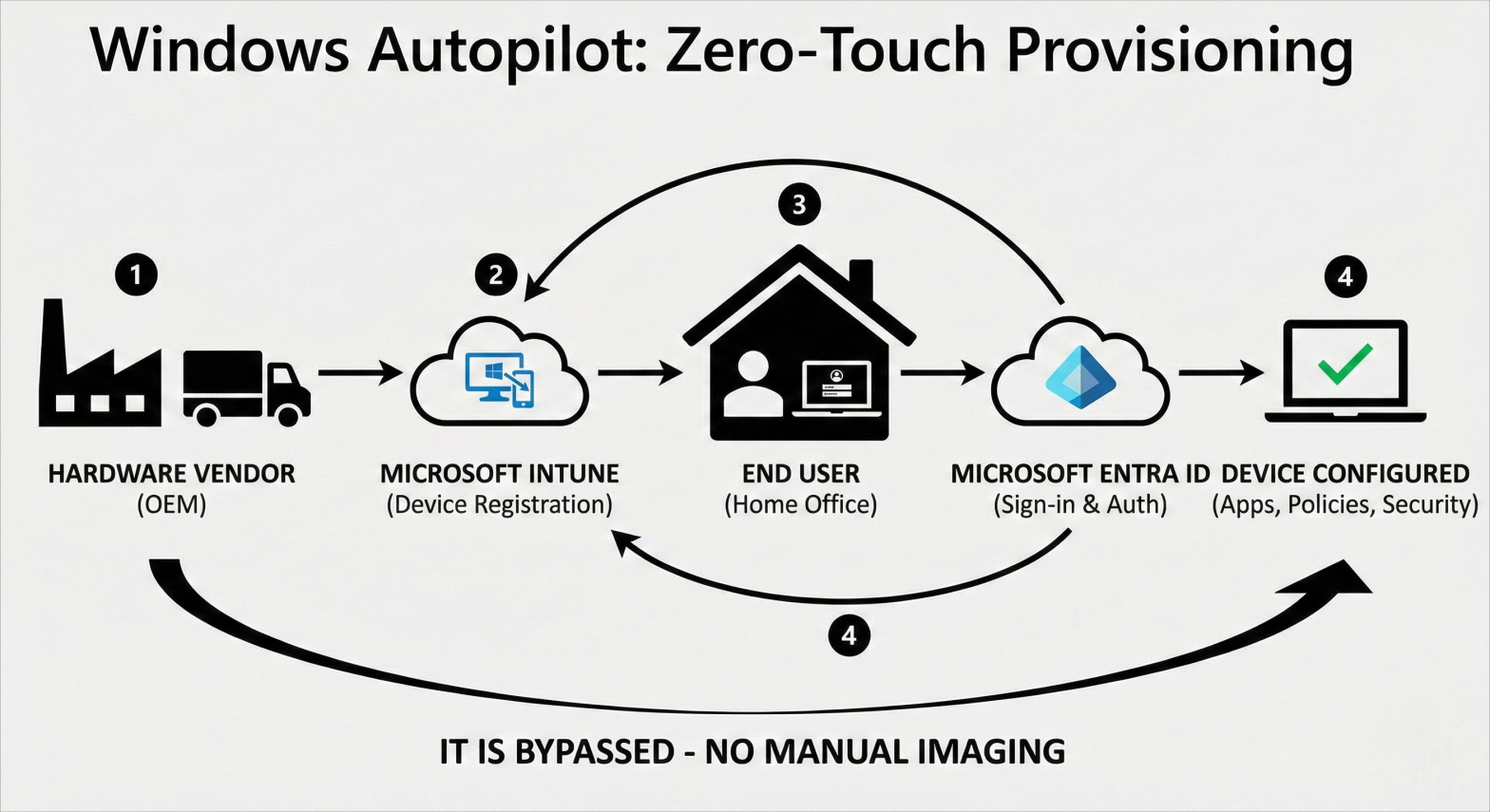
When your company buys laptops from an OEM vendor (like Dell, HP, or Lenovo), the vendor registers the hardware hashes directly into your Intune tenant. They then ship the shrink-wrapped laptop straight to the new remote employee's house.
When the employee opens the box, connects to their home Wi-Fi, and signs in with their company email, Autopilot takes over. It automatically joins the device to Entra ID, pulls down Intune policies, installs required software invisibly in the background, and secures the device. The user goes from unboxing to working in 15 minutes, and IT never has to touch the physical machine.
2. Endpoint Analytics
Intune provides proactive, AI-driven insights into your device fleet. Endpoint Analytics can tell you if a specific model of laptop is taking too long to boot up, or if a particular application is crashing frequently across your organization. This allows IT to fix hardware and software issues proactively, often before users even submit a helpdesk ticket.
3. The Microsoft Intune Suite
Microsoft recently introduced premium add-ons to Intune to consolidate third-party tools into a single pane of glass:
- Remote Help: Secure, cloud-based screen sharing and remote control built directly into Intune, integrated with Entra ID for secure, permission-based remote assistance.
- Endpoint Privilege Management (EPM): Allows standard users to temporarily elevate their privileges to install an approved app or run a specific script without giving them permanent, dangerous local administrator rights.
Intune vs. Microsoft Configuration Manager (SCCM)
For established organizations, a burning question is often: "Does Intune completely replace SCCM?"
Microsoft Configuration Manager (formerly SCCM) is the legendary, heavy-duty, on-premises solution for managing servers, complex bare-metal OS deployments, and massive application rollouts.
The answer is: Intune can replace it for modern devices, but you don't have to choose just one. Microsoft offers a powerful feature called Co-management.
With Co-management, a single Windows PC is managed by both Configuration Manager and Intune simultaneously. IT admins get a literal slider in the console to delegate workloads. For instance, you can let SCCM handle the deployment of massive, 20GB engineering software (to save internet bandwidth by using local distribution points), while sliding the "Compliance Policies" workload over to Intune so the device can participate in cloud-based Conditional Access.
Over time, however, most organizations are shifting workloads away from SCCM and moving fully to Intune as their infrastructure becomes inherently cloud-centric.
Licensing: How Do You Get Intune?
You don't typically buy "Intune" as a standalone product. It is generally bundled into Microsoft's broader enterprise licensing. You likely already have the rights to use it if your organization pays for:
- Microsoft 365 E3 or E5 (The standard for large enterprises)
- Enterprise Mobility + Security (EMS) E3 or E5
- Microsoft 365 Business Premium (The absolute best value for small-to-medium businesses under 300 users)
- Microsoft 365 F1 or F3 (Tailored for frontline workers)
Conclusion: The Future of Endpoint Management
When a C-suite executive or fellow IT pro asks, "What is Microsoft Intune?", you now have the definitive answer. It is the connective tissue between your remote workforce, their diverse devices, and your sensitive corporate data. By natively integrating with Entra ID and Microsoft Defender, Intune empowers organizations to embrace remote work, BYOD policies, and a zero-trust security architecture without sacrificing user productivity. Far more than a simple tool to push apps or wipe lost phones, it is the premier platform for modernizing your entire IT infrastructure.
If your organization still relies on legacy, on-premises domain controllers and clunky VPNs, the time to adapt is now. The traditional network perimeter is dead; your endpoints are the new front line. However, designing and optimizing a cloud-native environment requires specialized cybersecurity and cloud expertise. Explore our Intune Managed Service to see how AS13.ai's certified experts take the complexity out of the equation. From seamless Autopilot provisioning to daily compliance monitoring, we handle the heavy lifting. Discover how we can secure your diverse device fleet and streamline your IT operations today.
Blogs


Office Location
5th Floor, 1174, 24th Main Rd 2nd Sector,
Garden Layout, Sector 2, HSR Layout, Bengaluru,
Karnataka 560102
Email Us: info@as13.ai
Follow Us


Roles
AI
Cyber Security
